Google Workspace

The best Chrome extensions for work share one quality that has nothing to do with features: you can state exactly what data access they take in return for the time they save. That trade is worth naming, because the Chrome Web Store lists around 250,000 extensions, the large majority have fewer than a thousand users, and only a few hundred cross a million.
Extensions are also a different governance category from the sidebar tools in our guide to Google Workspace add-ons. A Marketplace add-on runs inside Gmail or Docs and publishes its OAuth scopes for central review. An extension modifies the browser itself, runs on whatever pages its permissions allow, and is governed through Chrome Enterprise policy rather than the Workspace Marketplace. That distinction decides who manages what: Workspace admins control add-ons, browser policy controls extensions, and a company that treats them as the same thing usually controls neither.
The ten below are chosen for operations and technical work: documentation, capture, credentials, research, and focus. Each entry states what Chrome or Workspace already does natively, what the extension takes access to, and what it costs in 2026.
Jump to section:
- What makes a Chrome extension safe to deploy company-wide
- Best Chrome extensions for work power users: detailed breakdown
- Best Google Chrome Extensions at a glance (2026)
- How to deploy Chrome extensions safely with Chrome Enterprise
- Audit your browser environment with Revolgy
- FAQ about Chrome extensions at work
What makes a Chrome extension safe to deploy company-wide
Four tests decide whether an extension belongs on a managed browser:
1. Permission footprint: the access it requests should match the job it does. A timer that wants to “read and change all your data on all websites” is asking for more than a timer needs, and every entry below states what it actually takes.
2. Active maintenance and stable ownership: an extension is only as safe as its current owner. Several clean, popular extensions have been bought and then pushed malicious updates to their existing users, so a recent update history and a known publisher matter as much as the feature list.
3. Native-first test: each entry states what Chrome or Workspace already does in that category. Where the native tool is enough, that is the recommendation, and the extension is only worth installing for the gap past it.
4. Business-tier manageability: for anything deployed at scale, it should support force-install and version pinning through Chrome Enterprise, so IT controls which version runs rather than letting silent updates decide.
Best Chrome extensions for work power users: detailed breakdown
1. Loom: async screen recording with share links
Google Meet can record a call and Google Vids can produce a short edited video, so for scheduled meetings and polished clips Workspace already has a path. Neither is built for the quick, unscripted “let me show you” recording you send instead of typing a long message.
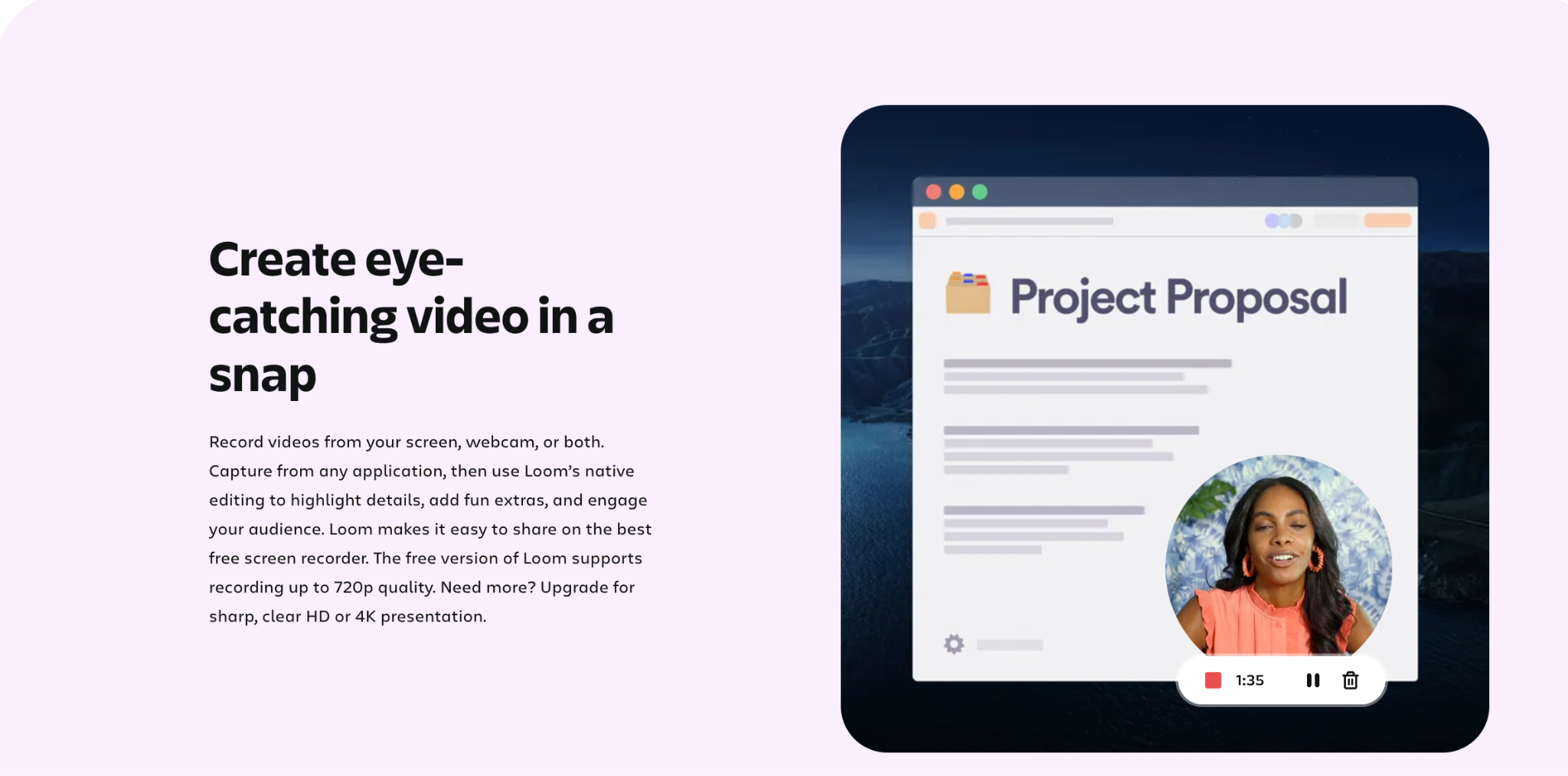
Loom records your screen, camera, or a single tab in one click and returns a share link the moment you stop, with viewer analytics and a searchable library. For bug reports, walkthroughs, onboarding, and client updates, it replaces a paragraph of explanation with a two-minute video.
The Business plan runs about $15 per user per month on annual billing (2026), with a free Starter tier capped at 25 videos and five minutes each. It requests screen, camera, and microphone access, which is exactly what its job needs and nothing wider.
The limitation is format: video is hard to skim and ages badly, so it suits explanation more than durable documentation.
2. Scribe: step-by-step guides from your clicks
There is no native equivalent here. Documenting a process in Workspace means screenshotting each step by hand and pasting the images into a Doc, which is slow enough that most processes never get written down.
Scribe records a workflow as you click through it and produces a formatted, step-by-step guide with screenshots and text automatically, ready to drop into a Doc, a wiki, or a help center. For teams that train, onboard, or hand off recurring tasks, it turns a half-hour of documentation into a two-minute capture.
Pro Team runs $17 per seat per month for five seats or more on annual billing (2026), with a free tier for basic web capture. During a capture it reads page content and takes screenshots, so it should be run deliberately on pages without sensitive data on screen.
The limitation follows from that: a careless capture can record confidential information into a guide, so it needs a moment of attention before each recording.
3. 1Password: shared vaults and clean offboarding
Chrome’s built-in Google Password Manager stores and autofills passwords for one user at no cost, and for an individual it is enough. It has no concept of a shared team vault, no provisioning, and no clean way to revoke a departing employee’s access to shared credentials.
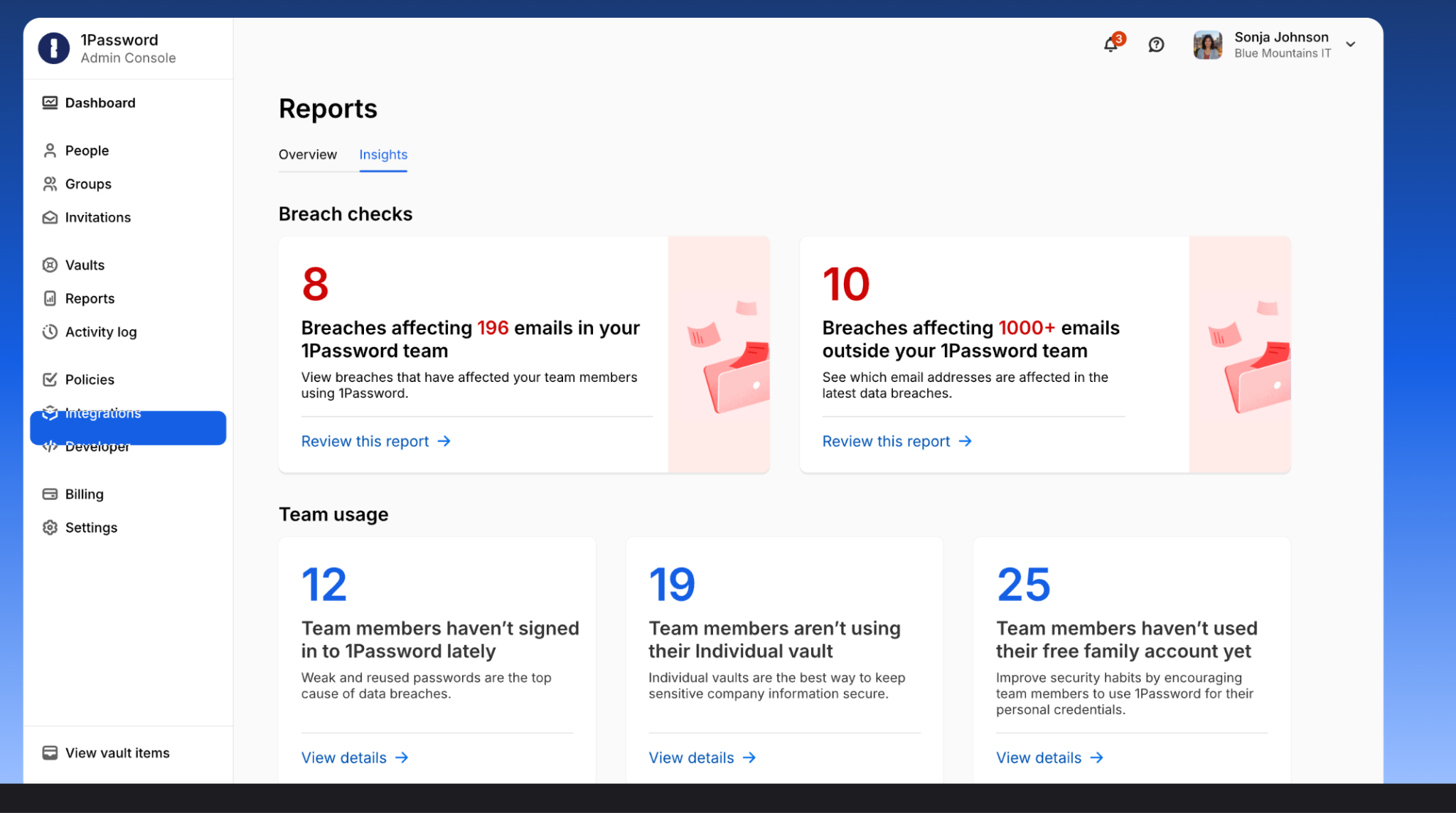
1Password adds shared vaults scoped by team, secrets and API-key storage, and the ability to remove someone from a vault in one action when they leave. For any company that shares logins beyond a handful of people, that controlled access is the reason to pay.
Business runs $7.99 per user per month (2026), with a 14-day trial rather than a free tier. The limitation is adoption: a password manager only protects what people actually put in it, so rollout needs enforcement, not just a license.
4. Grammarly: writing and tone across the web
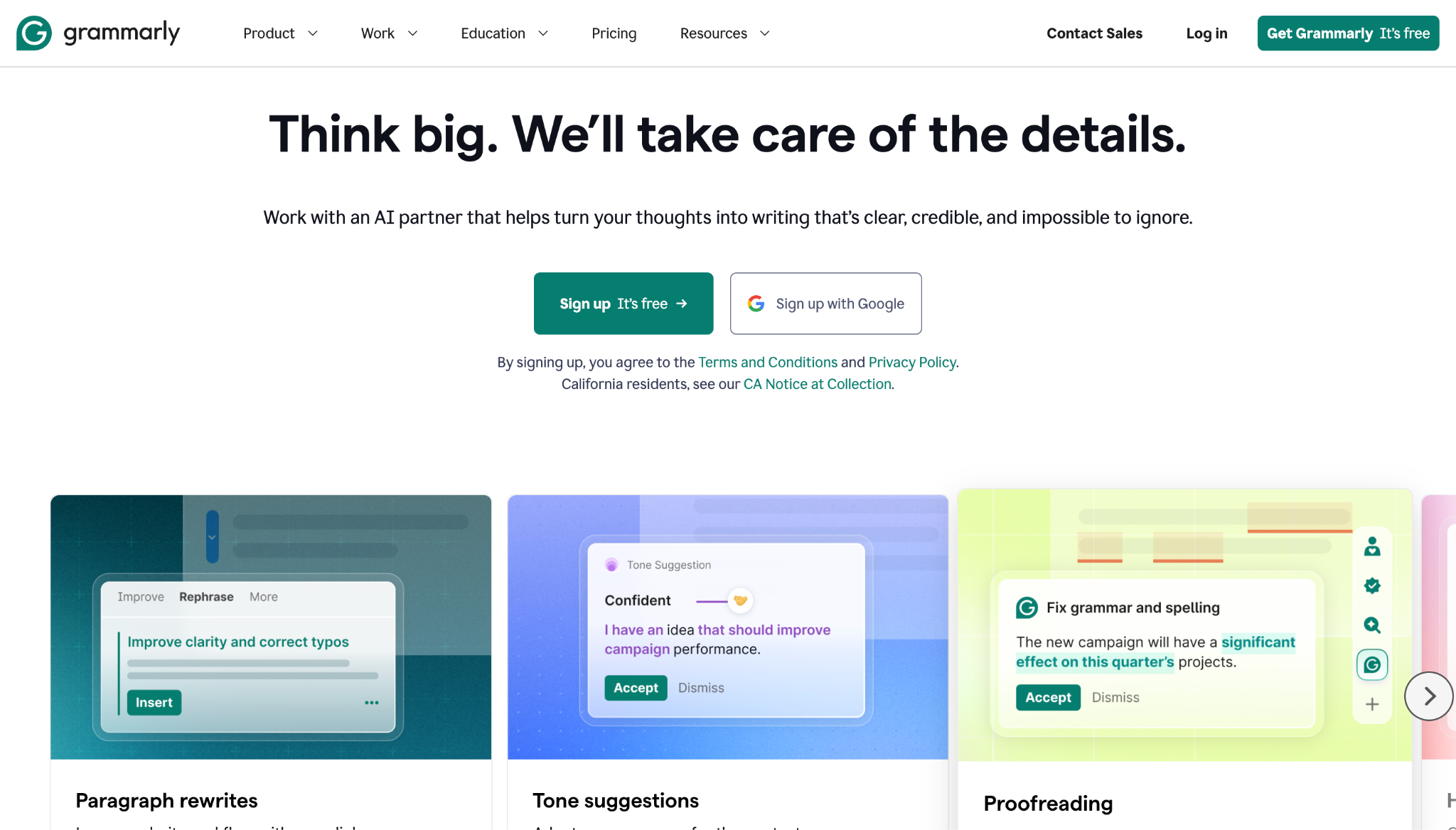
Chrome checks spelling natively, and Gemini in Docs and Gmail can draft, rewrite, and proofread on Workspace plans that include it. For writing that happens inside Google apps, that native layer covers a lot before any extension is needed.
Grammarly works everywhere you type in the browser, including the web apps Gemini does not reach, and adds tone, clarity, and consistency checks with team style guides on its business tier. For people who write customer-facing messages across many tools, that cross-site consistency is the gap it fills.
Pro runs about $12 per month, on top of a free tier that covers grammar and spelling. It reads the text you type across the sites where it is active, which is a wide footprint worth weighing against where Gemini already covers your team.
The limitation is overlap: if your writing lives mostly in Docs and Gmail and your plan includes Gemini, Grammarly may duplicate what you already pay for.
5. Todoist: task capture from any page
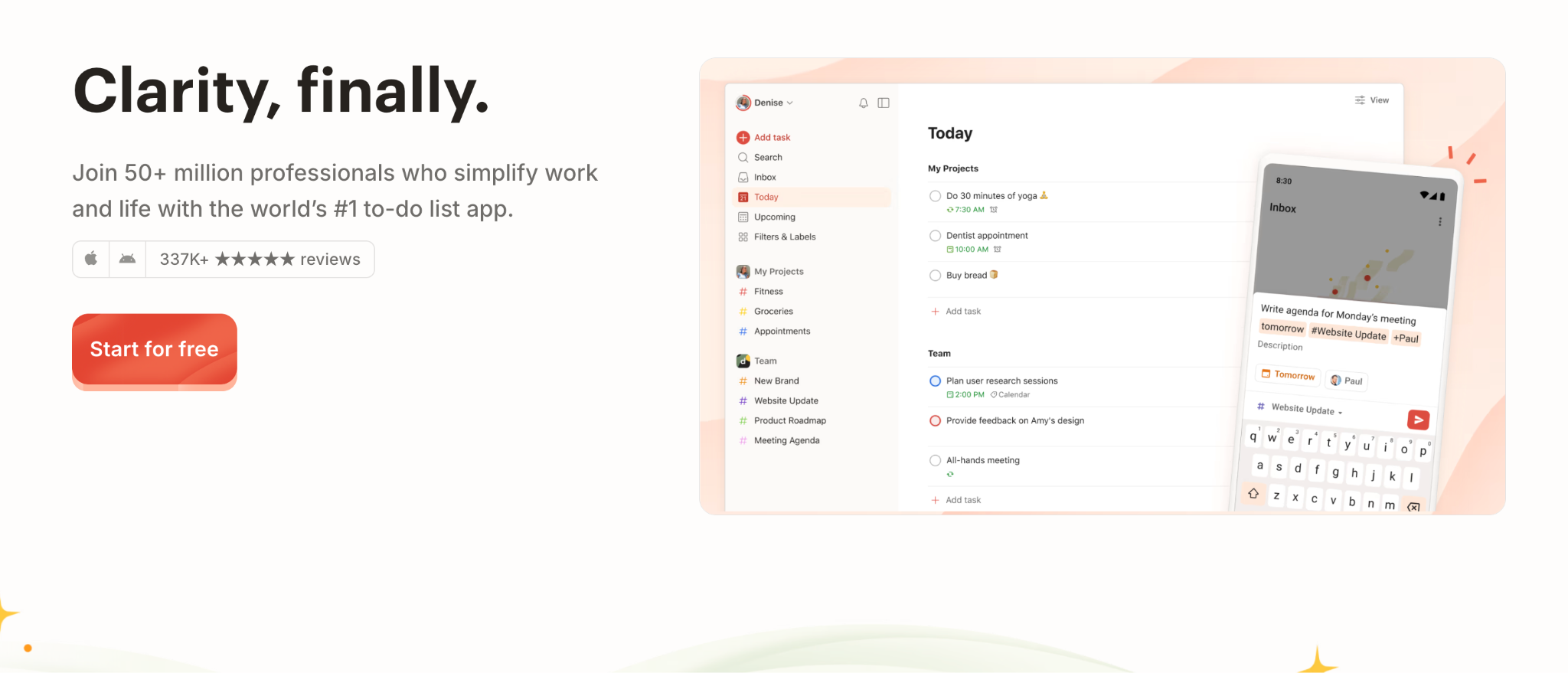
Google Tasks sits in the Gmail and Calendar side panel and handles simple personal lists at no cost. It cannot capture a task from an arbitrary web page, and it has no labels, filters, or project structure once a list grows.
Todoist captures a task from any page in one click, with the page link attached, and organizes work into projects with labels and filters. For people whose to-dos arrive from across the web rather than only from email, that capture-anywhere flow is the difference.
Pro runs about $5 per user per month and Business about $8 on annual billing (2026), with a free tier capped at five projects. It reads only the URL and title of the active tab, a narrow footprint for the job.
The limitation is duplication: a team already standardized on a project tool gains little from a second personal task system beside it.
6. Text Blaze: snippets that expand anywhere
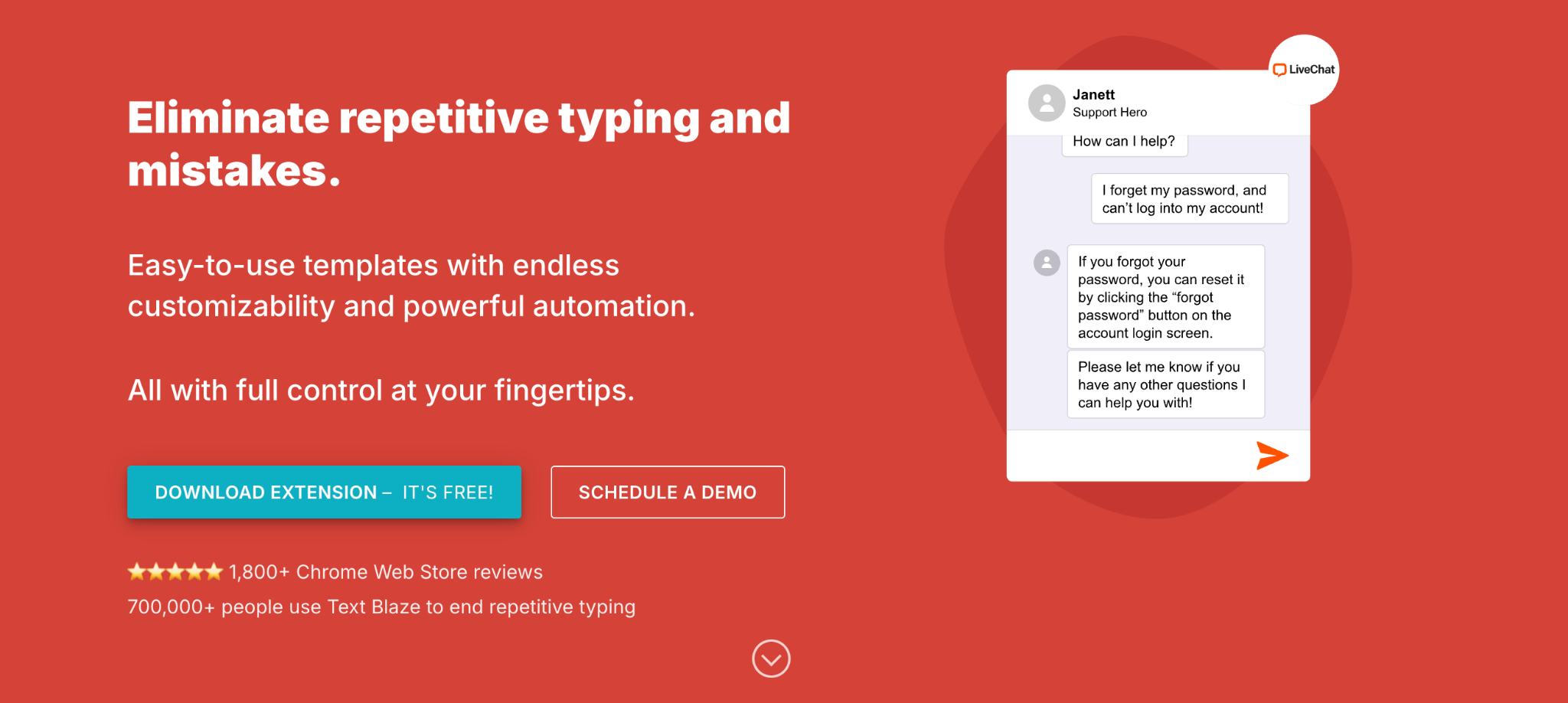
Nothing native covers this. Workspace has no text expander, so repeated phrasing, canned replies, and boilerplate get retyped or pasted from a scratch doc every time.
Text Blaze stores snippets that expand from a short trigger anywhere you type, with dynamic fields, dates, and form inputs built in. For support, sales, and recruiting teams that send the same structured messages all day, it removes a real and repetitive cost.
Pro runs about $2.99 per month and Business about $6.99 per user per month (2026), with a usable free tier. It needs permission to read and change data on the sites where snippets expand, which is the mechanism of the feature.
The limitation is drift: shared snippets need an owner, or teams end up with conflicting versions of the same canned reply.
7. Clockify: one-click time tracking
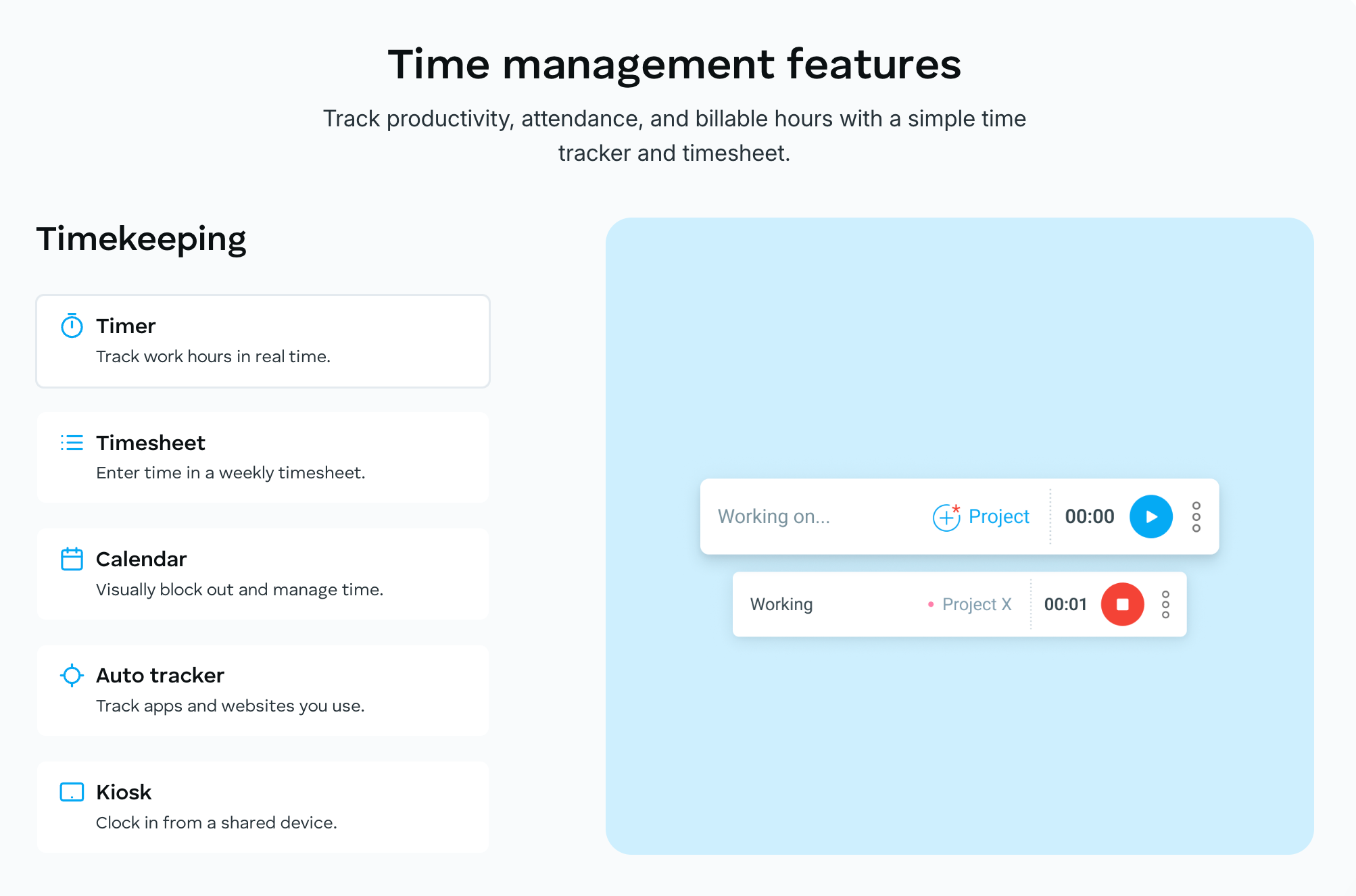
There is no native time tracker in Chrome or Workspace. Teams that need to track hours improvise with a spreadsheet, which nobody updates in real time.
Clockify adds a one-click timer button inside the web apps where work happens and rolls the entries into reports by project and client. For agencies and anyone who bills or budgets by hours, it captures time at the moment of work rather than from memory later.
The core product is free for unlimited users, with paid tiers from about $3.99 per user per month for features like rounding and required fields (2026). Its footprint is minimal, reading the active tab to attach a timer.
The limitation is honesty: time tracking only works if people start the timer, so it depends on habit more than on any feature.
8. uBlock Origin Lite: ad blocking that respects Manifest V3
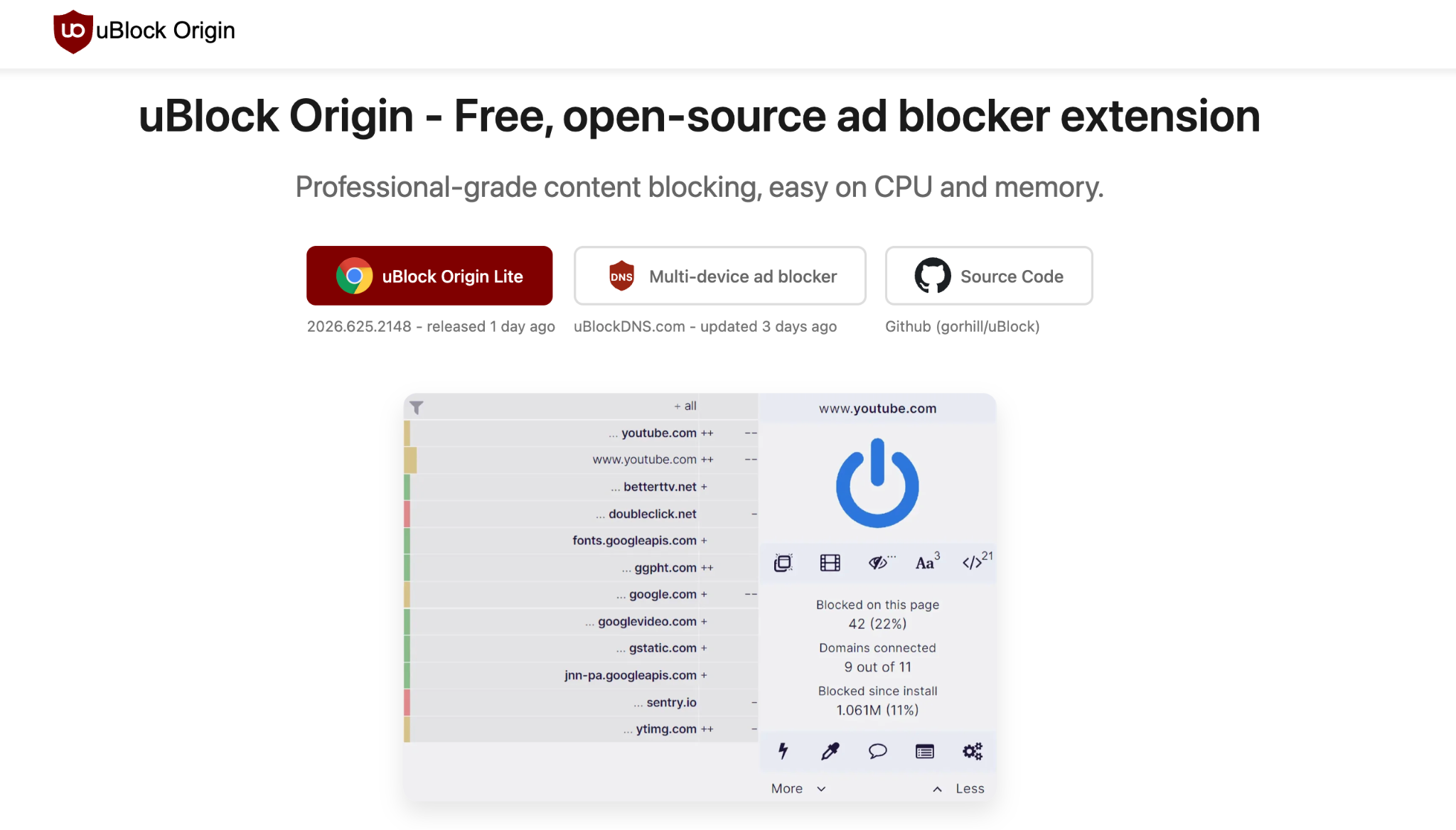
Chrome blocks some intrusive ads natively and Safe Browsing warns on known-bad sites, which is a baseline but not full content filtering. Note that the original uBlock Origin was removed from the Chrome Web Store when Chrome retired Manifest V2, so the original no longer installs on Chrome.
uBlock Origin Lite is the Manifest V3 version that still runs on Chrome, blocking ads and trackers through declarative rules with minimal memory use. For cleaner, faster, lower-distraction pages across a fleet, it is the open-source default.
It is free and open source. Its footprint is deliberately small: under Manifest V3 it filters with declarative rules rather than reading every page by default.
The limitation is the trade Manifest V3 forces: the Lite version is less powerful than the original, and users who need the full engine run it on Firefox instead.
9. Raindrop.io: a research library that outlives bookmarks
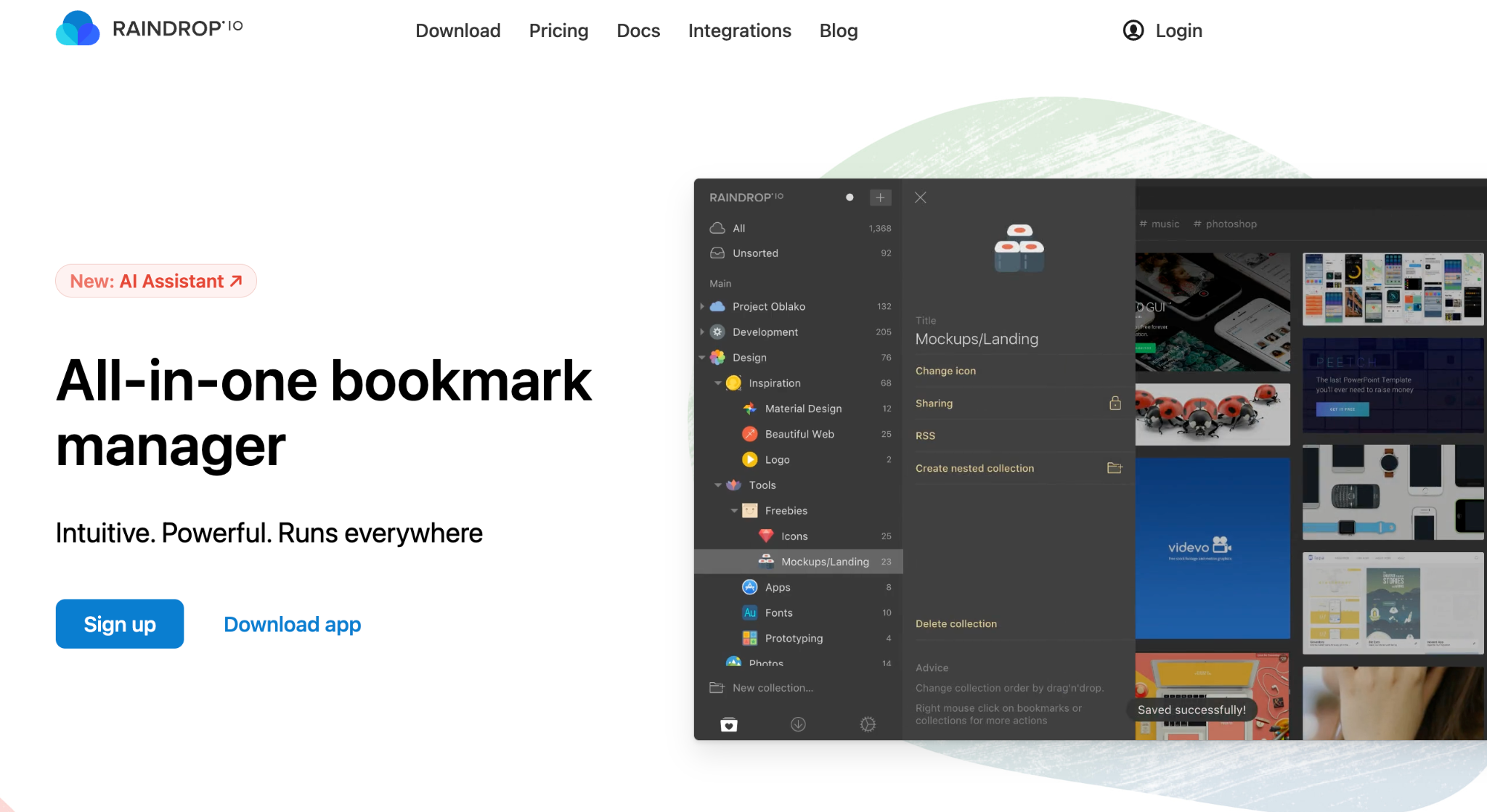
Chrome bookmarks save a link in a folder, which works until the folder count grows past memory. There is no native tagging, no full-text search across saved pages, and no clean way to share a research collection.
Raindrop.io saves pages with tags, notes, previews, and full-text search, organized into collections you can share. For research, competitive tracking, and any role that collects sources over time, it is the difference between a link graveyard and a usable library.
It is free for core use, with Pro at about $3 per month for full-text search and more (2026). It reads the title, URL, and content of pages you choose to save.
The limitation is the same as any saving tool: a library only stays useful with a little ongoing tagging discipline.
10. Wappalyzer: see the tech behind any site
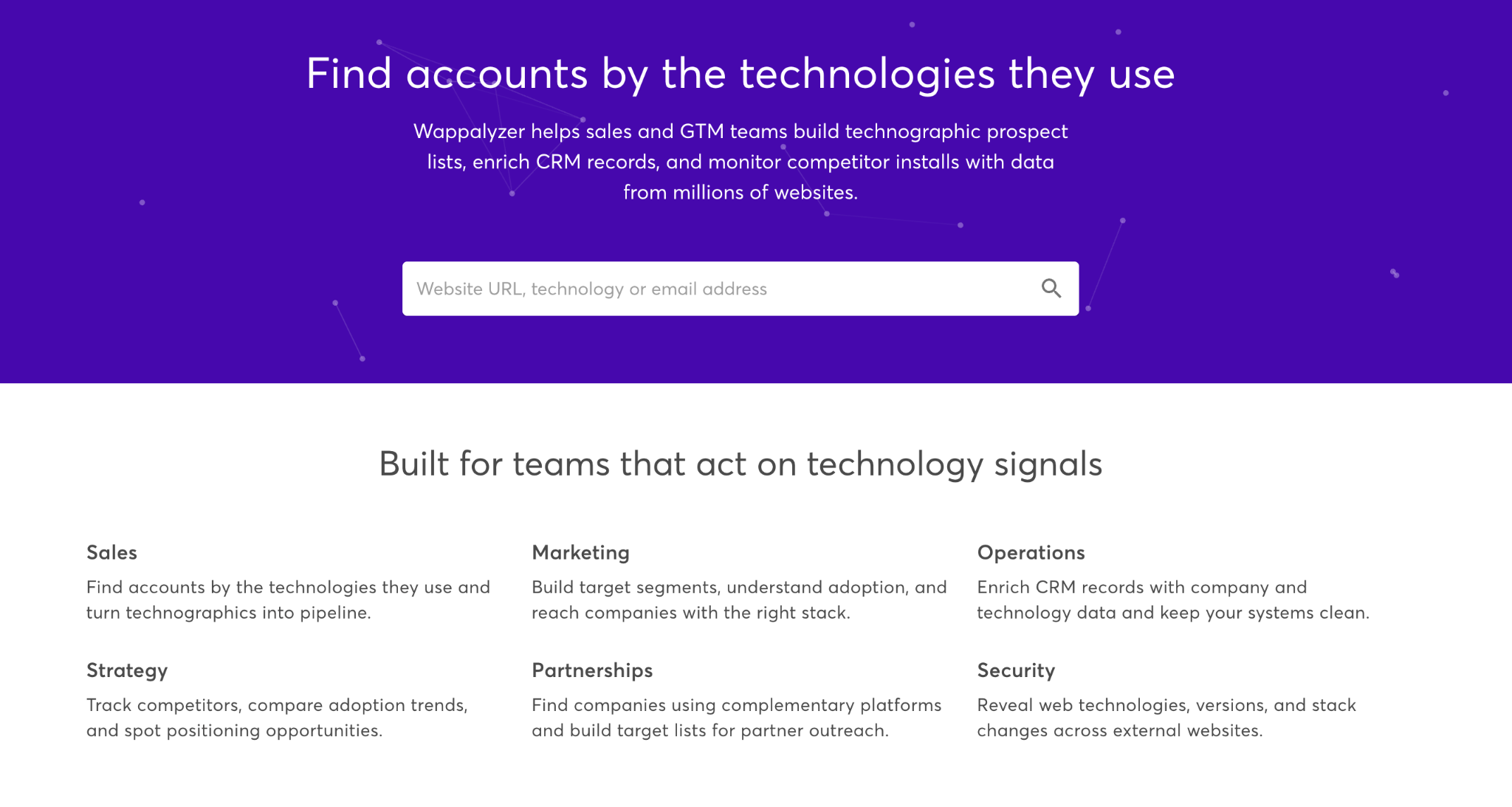
Nothing native does this. Identifying the stack a website runs means opening DevTools and reading source by hand, which is slow and incomplete.
Wappalyzer reports the technologies a site uses, the CMS, analytics, payment, and hosting, from a single click. For sales research, vendor due diligence, and competitive work, it surfaces in seconds what would otherwise take real digging.
The extension is free for on-page lookups and pro starts with $250/month for paid plans to cover lead lists and API access for teams that need the data at scale (2026). It reads the pages you visit to detect technologies, which is its core function.
The limitation is accuracy: detection is inference, so it can miss or misattribute tools, and findings are a strong lead rather than proof.
11. (BONUS) GoFullPage: capture an entire page
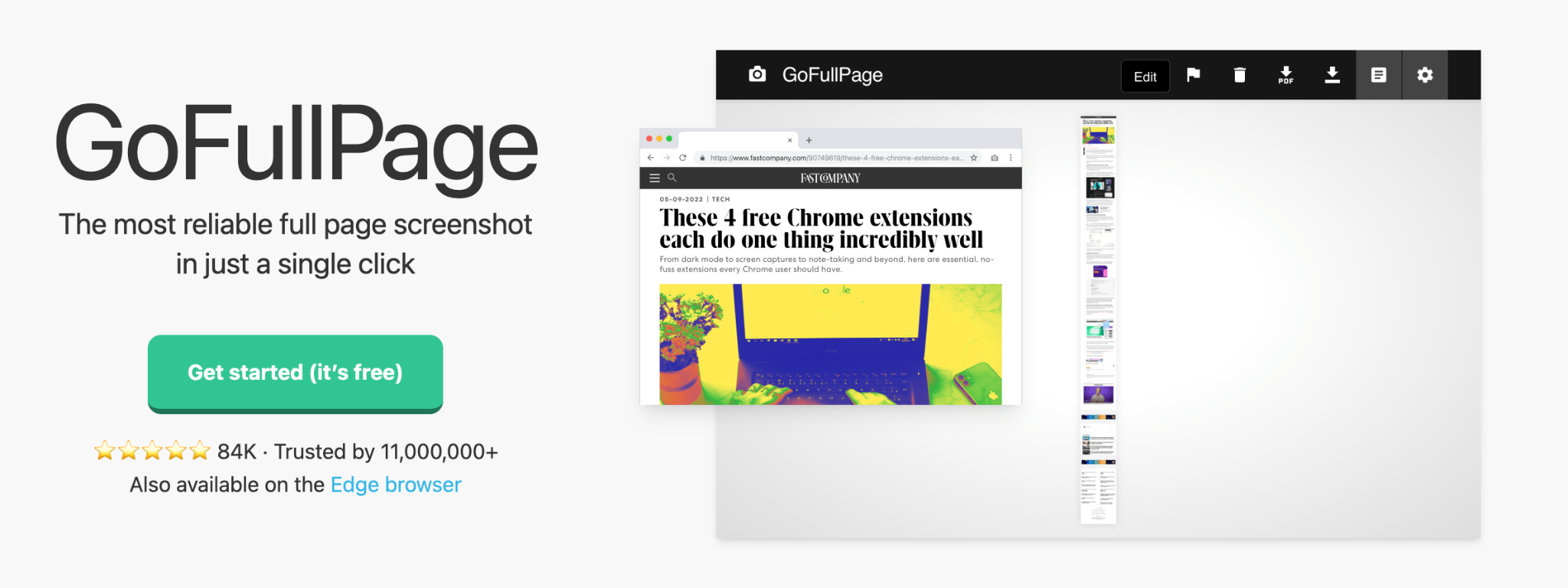
Chrome can screenshot the visible area through DevTools, but capturing a long, scrolling page natively is awkward and rarely used.
GoFullPage captures an entire scrolling page in one click and exports it as an image or PDF. For QA, design review, archiving a page as it looked, and bug reports, it is the simplest reliable full-page capture in Chrome.
It is free, with a small one-time Pro upgrade for $1 a month. It captures only the active tab when you invoke it and runs nothing in the background, which is a clean footprint.
The limitation is scope: it makes a static image, so anything dynamic or interactive on the page is flattened.
Best Google Chrome Extensions at a glance (2026)
| Extension | Best for | Native baseline | When it earns the install | Price |
| Loom | Async screen recording | Meet recording, Google Vids | Instant share links, viewer analytics, no scheduling needed | Free (25 videos, 5-min cap); Business ~$15/user/mo |
| Scribe | Process documentation | None (manual screenshots into Docs) | Auto step-by-step SOPs generated from your clicks | Free basic web capture; Pro Team ~$17/seat/mo (5+ seats) |
| 1Password | Team password management | Google Password Manager | Shared vaults, provisioning, clean offboarding | Business $7.99/user/mo; 14-day trial, no free tier |
| Grammarly | Writing assistance | Gemini “Help me write” in Docs and Gmail | Consistent tone and clarity across every site in the browser | Free (grammar & spelling); Pro ~$12/mo |
| Todoist | Task capture from any page | Google Tasks (Gmail/Calendar panel) | One-click capture from any page with link attached; projects, labels, filters | Free (5 projects); Pro ~$5/user/mo; Business ~$8/user/mo |
| Text Blaze | Text expansion | None | Snippets with dynamic fields that expand anywhere you type | Free tier available; Pro ~$2.99/mo; Business ~$6.99/user/mo |
| Clockify | Time tracking | None | One-click timer inside any web app; project and client reports | Free unlimited users; paid from ~$3.99/user/mo |
| uBlock Origin Lite | Ad blocking, page speed | Chrome’s built-in intrusive-ad filter | Stronger MV3-compatible content filtering; open-source default | Free, open source |
| Raindrop.io | Bookmarking and research | Chrome bookmarks, Reading List | Tags, collections, full-text search, shareable libraries | Free core; Pro ~$3/mo |
| Wappalyzer | Website tech-stack detection | None (DevTools by hand) | Identify CMS, analytics, hosting behind any site in one click | Free extension; paid ~$250/mo (lead lists/API) |
| GoFullPage | Full-page screenshots | Chrome DevTools (visible area only) | Capture entire scrolling pages in one click; export as image or PDF | Free; Pro ~$1/mo |
How to deploy Chrome extensions safely with Chrome Enterprise
The exposure here is larger than most teams assume. Surveys put extension use at near-universal in companies, with most employees running several and many running more than ten, and each one can read or change pages inside the permissions it was granted. That is a wide, mostly unreviewed surface sitting inside the browser where work happens.
What makes it harder than a one-time review is that vetting an extension once is not enough:
- A clean extension can turn malicious later. Several popular extensions behaved normally for years, some earning Featured or Verified status, before a silent update weaponized them against their existing users.
- Trust gets bought. Attackers purchase legitimate extensions from their developers and push a malicious update to the user base that already trusts the original, skipping the need to trick anyone into installing.
- Even security vendors get caught. One campaign compromised a data-loss-prevention company’s own extension through a developer phishing attack, as part of a wave that hit dozens of extensions and millions of users.
So the admin’s job is ongoing control. Chrome Enterprise provides it, and the sequence matters:
- Audit first. Chrome Enterprise Core is free, and its Apps and extensions usage report shows every installed extension across the fleet and how many users have it, which is the picture you need before writing any policy.
- Manage by risk before managing by list. Google’s recommended order is to block high-risk permissions and host access first, since that scales to extensions you have not seen yet, then use allowlists and blocklists, which do not scale on their own.
- Force-install and pin versions for the sanctioned stack. Pushing the approved extensions to the right users and pinning their versions is also the defense against the post-install update threat above, because it stops a silent update from changing what runs.
Audit your browser environment with Revolgy
If your team runs on Google Workspace and Chrome but the extension layer is installed ad hoc rather than governed, Revolgy can help bring it under control.
Revolgy is a certified Google Cloud Premier Partner that deploys and manages Google environments across the globe, including admin configuration, security policy, and Gemini adoption.
- Extension and permission audit: Revolgy reviews what is installed across your fleet through the Chrome Enterprise usage report, and flags the extensions whose permissions are wider than their job.
- Policy and force-install setup: engineers configure Chrome Enterprise policy to block high-risk access, force-install the sanctioned stack, and pin versions so silent updates cannot change what runs.
- Native-first review: Revolgy maps which extensions duplicate something Chrome or Workspace already does, so you keep the ones that close a real gap and drop the rest.


Frequently asked questions about Chrome extensions at work
Are Chrome extensions safe for business use?
The vetted ones are, but safety is about access and maintenance, not the install count. Google reviews extensions, yet malicious ones still reach the store, so the practical safeguards are to read each extension’s permissions, prefer actively maintained tools from known publishers, and manage the fleet through Chrome Enterprise rather than trusting per-user installs.
Can a Chrome extension become malicious after you install it?
Yes, and it is one of the more common attack patterns. A clean extension can turn malicious through a silent automatic update or after its ownership changes hands, which is why one-time vetting is not enough. Pinning versions and watching the usage report through Chrome Enterprise is how an admin keeps a once-approved extension from changing under them.
How do I deploy a Chrome extension to all employees?
Use Chrome Enterprise Core, which is free, to force-install the approved extensions to specific organizational units or groups from the Admin console, and pin the version so updates are deliberate rather than automatic. This replaces asking each user to install tools themselves and gives IT a single place to add or remove them.
What permissions should make you think twice?
The broadest one is “read and change all your data on all websites.” Some tools genuinely need it, a password manager autofilling across every login page, for example, but a timer, a task capture tool, or a screenshot tool should not. When the access requested is wider than the job, treat it as a reason to look closer.
What is the difference between a Chrome extension and a Google Workspace add-on?
An add-on installs from the Google Workspace Marketplace, runs inside Gmail, Docs, or Sheets, publishes its OAuth scopes, and is governed from the Workspace Admin console. An extension modifies the browser itself, runs on whatever pages its permissions allow, and is governed through Chrome Enterprise policy. They are different tools with different controls, which our guide to Google Workspace add-ons covers on the add-on side.